Home>Credit Cards>Credit Card Basics

Credit Cards
Credit Card Basics
Table of Contents
Getting started with credit card basics
Before you fill out an application, it helps to understand credit card basics like card eligibility & applications so you are not caught off guard. The issuer, not the wallet app, ultimately decides if your card qualifies, and you may need to complete extra verification steps like a text-message code or security questions before the card appears as an option. Once approved, the easiest way to get started with account management & setup is to open the Wallet app on iPhone, tap the add button, and choose a card type; on Android, open Google Wallet and tap Add to Wallet followed by Payment card. A common point of confusion involves store card acceptance, because not all retailer-branded cards are supported by every wallet app. For physical card handling, some eligible cards can be added by tapping the physical card to the back of an iPhone, while on Android you will typically scan the card with your camera or enter the number manually. Taking these steps correctly from the start prevents unnecessary declines and support calls later.
Managing your account day to day
Staying on top of your account means checking charges regularly. The fastest way to handle a statement & charge clarification for Apple Card is to open the Wallet app on your iPhone, tap Apple Card, and select any transaction under Latest Card Transactions, where you will see the merchant name, category, and location. If a charge from Apple itself looks unfamiliar, remember that services like subscriptions or media purchases often appear on the PDF statement as apple.com/bill or iTunes.com/bill rather than a more descriptive label. When a stored card expires or a billing address changes, updating billing information in Google payments takes just a few taps: sign in to Payment Methods and click Edit next to the saved method to correct the details so you avoid an unnecessary decline on the next renewal.
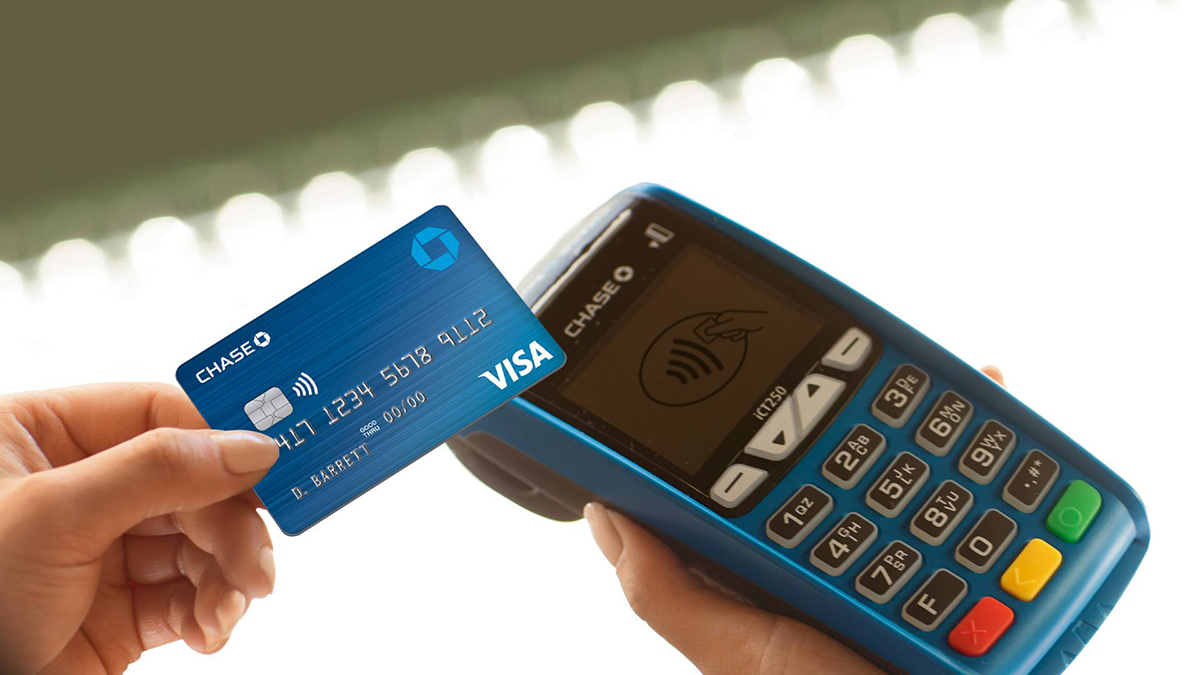
For accounting & bookkeeping, open the Wallet app on an iPhone, tap Apple Card, then tap Card Balance and scroll to the statement you need. From there you can download a PDF that breaks out your previous balance, new spending, payments and credits, and any installment balance, usually giving you everything required to reconcile personal records without jumping between screens. When you are ready to pay, a digital wallet & transfers approach is often the quickest path. On a Samsung Galaxy phone, swipe up from the bottom of the home screen to open Samsung Wallet, select your card, verify with a fingerprint or PIN, and tap the phone to the terminal. If the store does not accept contactless payments at all, alternative payment methods like a retailer’s own app or a carrier-billed purchase may still work, though you should first check whether the merchant participates in the network your card uses.
Handling problems and staying secure
If you use an Apple Card, open the Wallet app on your iPhone, tap a transaction under Latest Card Transactions, tap it again, then tap Report an Issue and choose either “I need help with this transaction” or “I want to report a compromised card and request a replacement card,” then tap Continue to Chat so the Messages app opens with a pre-written message to Goldman Sachs. For other issuers, the official guidance is to report the charge as fraud if neither you nor any authorized user recognizes it, but first rule out a simple network mismatch, a store card that declines at an unfamiliar terminal may simply not run on that payment network.
On an iPhone, go to the Wallet app, tap the card, tap Card Details, then tap Remove Card. Doing so on one device does not remove it from your other Apple devices, so you will need to repeat the step on an Apple Watch or Mac if you want it gone everywhere. On Android, open Google Wallet, tap the card, then at the top right tap More and choose Remove payment method.
A few situations depend on capital one specifics that differ from the general patterns above, so you’ll want that guide to navigate the quirks without getting stuck. The public help materials do not spell out the exact in-app menu path for a fraud dispute or a cancellation request, so the safest route is to call the number on the back of your card right away if a charge looks unfamiliar rather than guessing at a workflow that may have changed.
- removing & canceling cards - Removing & Canceling Cards
- capital one specifics - Capital One Specifics
- security & fraud - Security & Fraud